

Abra releases automated checks for accessibility language
When a screen reader encounters text in your app, it needs to know which language that text is in. With the language declared, the screen reader picks the right text-to-speech engine and applies the right pronunciation rules.
Without it, English text might be read with a German accent, or Japanese characters might not be announced at all. A French user using an English app should hear it pronounced in English, not French.
Today, we're introducing a new rule in Abra Desktop and Abra SDK that detects whether the app language has been declared.
The rules are available for Android and iOS, supporting apps built with any framework, including SwiftUI, Jetpack Compose, Flutter, React Native and .NET MAUI.
App language issues
Apps that have not declared the language for assistive technologies fail Success Criterion 3.1.1 Language of Page.
Here are some examples of what can go wrong when the language is not declared.
iOS: A news app is only available in English, but the
accessibilityLanguageproperty is not set at the application level. VoiceOver falls back to the user's device language, so a user with a French device hears the English content pronounced with French phonetics, often making it unintelligible.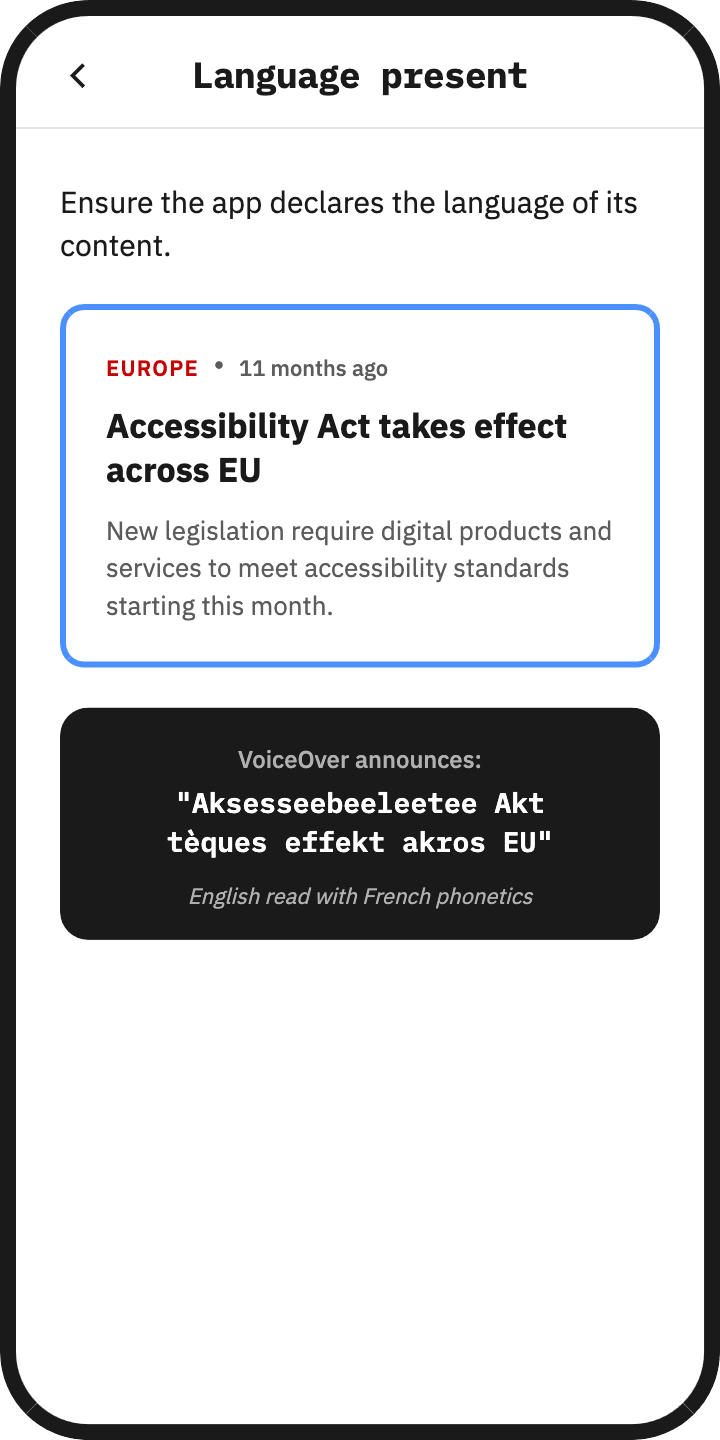
Android: A travel app supports five languages, but these languages are not declared at the application level. As a result, the language picker does not appear under Settings > Apps > [App name] > Languages. Users cannot tell the system which language to use for screen reader output. TalkBack defaults to the device language, regardless of what is actually displayed on screen.
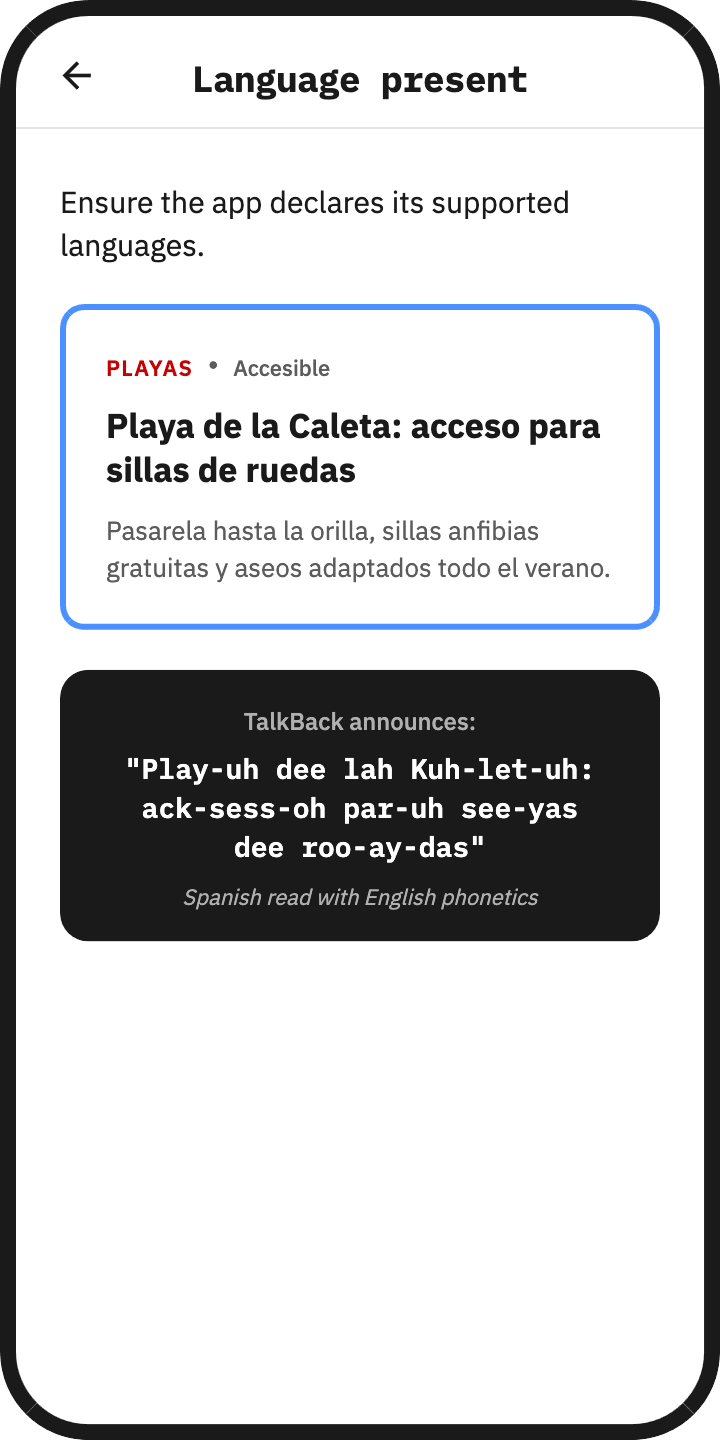
➔ The App language present rule automatically detects these issues on both Android and iOS.
How the check works
Manually verifying language declarations means switching device languages, toggling screen readers on and off, and listening carefully for pronunciation differences. It's tedious, and issues are easy to miss.
Visual localization doesn't guarantee screen reader accuracy. A French app with "Solde" (balance) looks French, but without the language attribute, the screen reader may pronounce it incorrectly. A German word like "Größe" with the wrong language setting becomes difficult to understand across text-to-speech engines.
A screen reader announcement can even sound acceptable when the underlying language attribute is wrong, particularly for short strings or words that happen to be pronounced similarly across languages. A manual tester would rarely catch this.
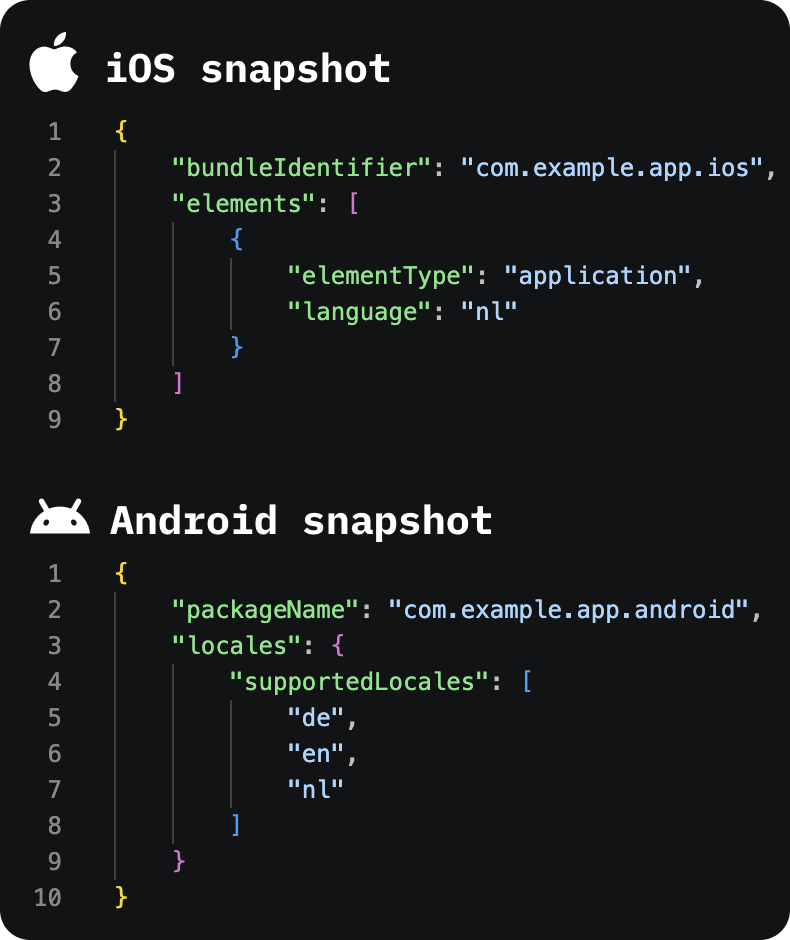
Abra eliminates this guesswork. Instead of relying on screen reader output, Abra extracts information directly from the accessibility layer of the Android and iOS operating system.
On iOS, it checks whether the accessibilityLanguage property has been set at the application level.
On Android, it queries the system to read the app's declared locale configuration.
You see precisely what is missing and why — with a level of accuracy and consistency that manual testing cannot achieve.
 Get started with Abra
Want to test your own app? Contact us to start a free trial or schedule a demo. In the demo we will show you what issues Abra finds in your app.
Further reading
-
Abra releases automated checks for name, role, state and value
When users navigate an app with a screen reader, every element is announced using a combination of four properties: name, role, state, and value. Read more »
-
Capture Android and iOS accessibility hierarchy using Abra snapshots
Browser DevTools make web accessibility inspection easy. Chrome, Firefox, and Safari all let you inspect the accessibility tree of any website. With mobile apps, we don't have that luxury. Read more »
-
Practical guide to mobile accessibility testing
If you are a developer, designer, tester, auditor or any other professional already working on accessibility but unsure how to approach mobile accessibility testing by hand, this guide is for you. Read more »