
Focusable element's name correct
What you see is not always what a screen reader announces.
A button displays "Submit". The screen reader announces "Submit, Button". Everything sounds fine. But the accessible name in the code might tell a different story.
Today, we're introducing a new rule in Abra Desktop and Abra SDK: Focusable element name correct.
Available for Android and iOS, supporting SwiftUI, Jetpack Compose, Flutter, React Native and .NET MAUI.
The programmatically determined name
A screen reader does not read what is visually displayed on the screen. It uses the information exposed through the accessibility layer of the operating system to announce elements — including the accessible name.
Developers define this name through properties such as contentDescription on Android or accessibilityLabel on iOS.
The accessible name and the visual label are not always the same thing. The visual label is what users see on screen. The accessible name is the name exposed to assistive technologies such as screen readers or voice control.
Present vs. correct
Our earlier rule, Focusable element name present, checks whether the accessible name property is set at all.
For example, in an Android app, an ImageButton shows a share icon but the contentDescription property is empty. TalkBack announces only "Button", giving no indication of its purpose.
But what about elements that have a name, yet the name is incorrect?
A name consisting entirely of space characters. Technically not empty — but meaningless.
A file name instead of a name: TalkBack announces "ic_magnifying_glass, Button" instead of "Search, Button".
A name that duplicates the role: a save action has the accessible name "Save Button". Since the role is exposed separately, the screen reader announces "Save Button, Button" — a stuttering duplicate.
In all these examples, the name is present. It is just not correct.
These are only a few examples. The new Focusable element name correct rule detects many more patterns where the accessible name is incorrect.
The rule applies to all focusable elements — not only interactive ones like buttons and tabs, but any element that receives focus from assistive technologies, including static text or images.
Why this matters
People who rely on assistive technologies depend on a correct accessible name to understand what an element does.
If the name does not accurately describe the function or purpose of an element, screen readers and voice control use incomplete or misleading information.
Users may not understand what an element does or how to interact with it correctly.
Why manual testing misses this
A manual tester navigates the app with a screen reader and reports what they hear. If the announcement sounds reasonable, the element passes.
But the announcement can sound correct while the code is wrong.
Take this example: a developer sets the accessible name to "Submit Button" and leaves the role property empty. The screen reader announces "Submit Button" — sounds fine. A manual tester would pass it. But the role is missing. The name is doing the job of two properties.
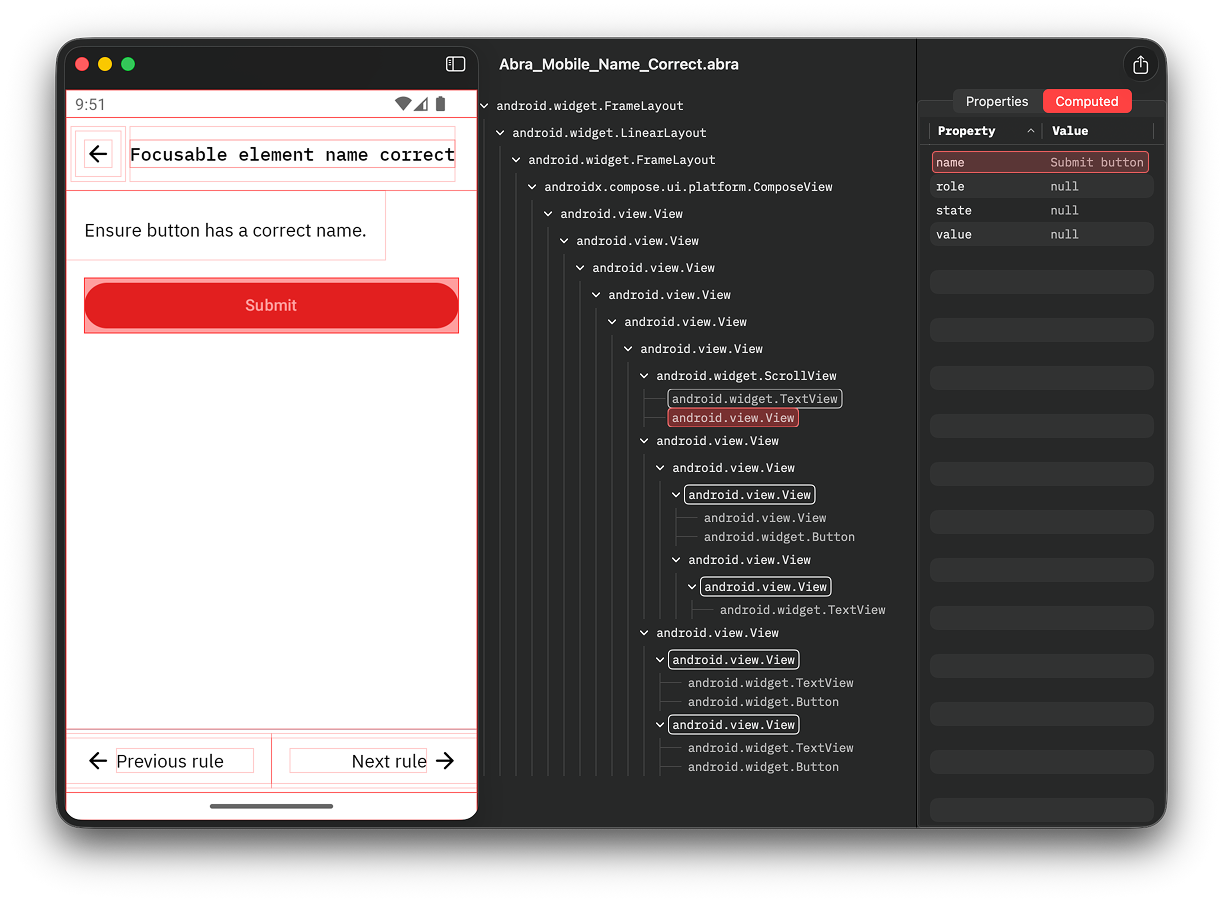 Abra eliminates this guesswork. Instead of relying on screen reader output, Abra extracts information directly from the accessibility layer of the Android and iOS operating system. It sees the name, role, state and value as separate properties and checks each one independently. If the name is incorrect, Abra flags it.
Compliance: WCAG and EN 301 549
The Focusable element name correct rule maps to:
WCAG 2.2 Success Criterion 4.1.2 Name, Role, Value for interactive elements
WCAG 2.2 Succes Criterion 1.1.1 Non-text Content for focusable images and icons.
Both criteria are referenced in EN 301 549, the European accessibility standard commonly used to assess compliance with the European Accessibility Act (EAA).
Catch most common issues automatically
In many of our mobile accessibility audits, we find issues that Abra's automated rules detect. With a few clicks, you can test a screen against all of them:
For everything that automation cannot cover, Abra includes almost 100 manual rules. Together, they let you report the remaining issues and produce a complete audit report demonstrating compliance with WCAG and EAA.
Get started with Abra
Want to test your own app?
Contact us to start a free trial or schedule a demo. During the demo, we will show you what issues Abra finds in your app.
Further reading
-
Abra releases automated checks for accessibility language
When a screen reader encounters text in your app, it needs to know which language that text is in. With the language declared, the screen reader picks the right text-to-speech engine and applies the right pronunciation rules. Read more »
-
Abra releases automated checks for name, role, state and value
When users navigate an app with a screen reader, every element is announced using a combination of four properties: name, role, state, and value. Read more »
-
Labels for non-text content in mobile apps
Think about the last image you shared online. A photo on LinkedIn. A chart in a presentation. An icon on your website. Did it have an alternative text description in the code? Read more »