

Automated accessibility testing for mobile apps
Your app changes with every release. A redesigned component, a framework update or a new screen can introduce accessibility issues, including in parts of the app that worked before.
Automated accessibility testing for mobile apps helps your team detect recurring issues during development. By adding accessibility checks to your existing UI tests, you can run them regularly and catch regressions before release.
At Abra, we use this approach with the Abra SDK. It gives teams a repeatable foundation for testing iOS and Android apps, which they can extend with manual testing and AI assistance.
What automated accessibility testing checks
Automated tools apply defined rules to information they can inspect, such as the properties exposed through the platform accessibility layer, element dimensions or the rendered interface.
The accessibility layer is the information an app makes available to assistive technologies. It helps a screen reader understand what an element is, what it does and which state or value it has.
Depending on the tool and platform, automated checks can detect:
Area | Examples of issues automation can flag |
|---|---|
Accessible names | Missing names and specific patterns of incorrect naming |
Roles | Missing roles or detected mismatches between a role and an element’s properties |
States and values | Missing information or combinations that are invalid for the exposed role |
Target size | Interactive targets below a defined size threshold |
Language and orientation | Missing app language information or restrictions on screen rotation |
Visual presentation | Certain contrast, text scaling or clipping problems covered by platform checks |
Check the scope of each rule. A tool that identifies one type of naming problem does not necessarily recognise every misleading label.
Why the accessibility layer matters
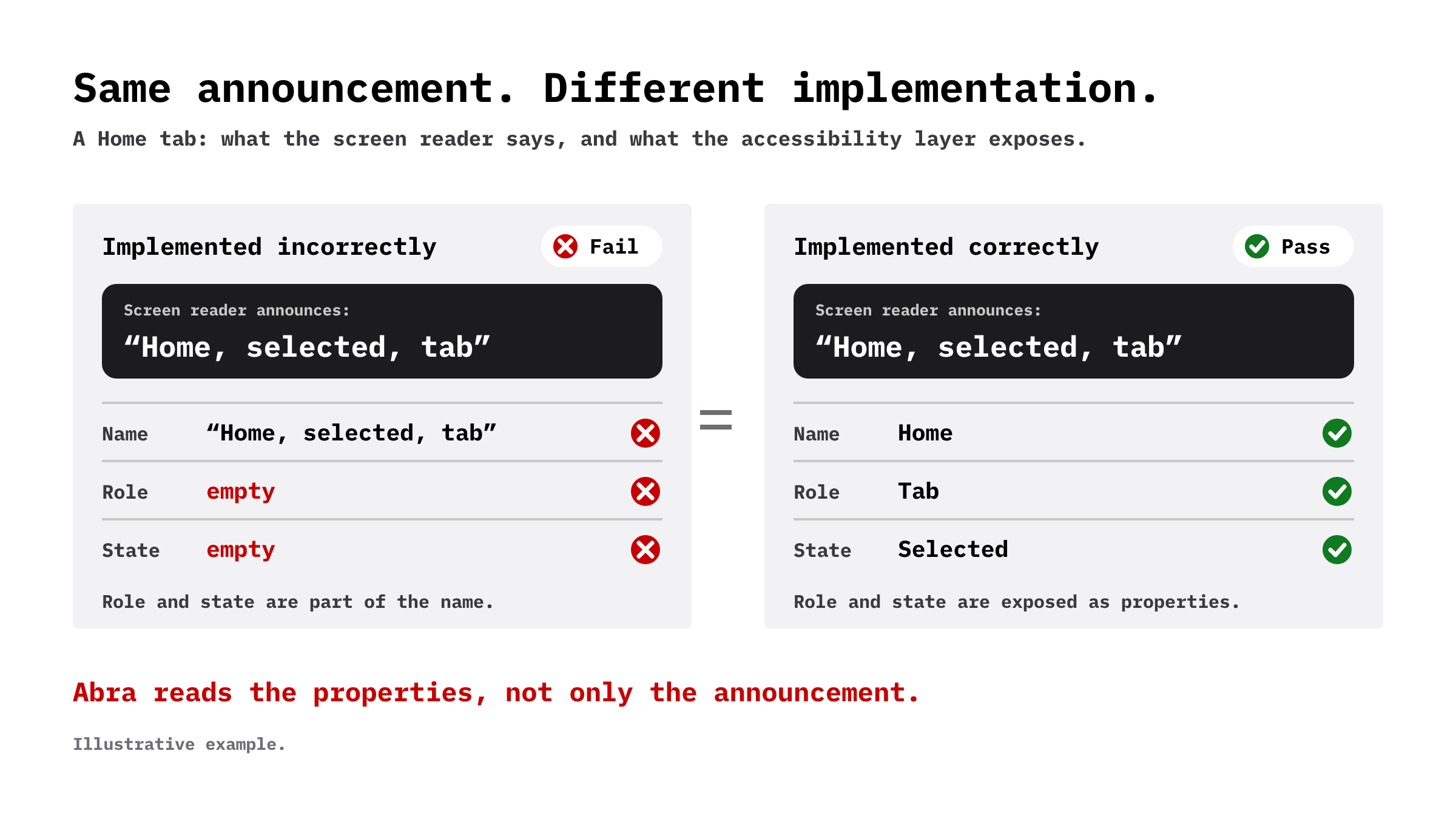 A screen reader announcement can sound correct while the underlying implementation has problems.
Imagine a tab with the accessible name “Home, selected, tab”. A screen reader may speak all these words, but the role and selected state might be missing from the properties used to expose that information programmatically.
The announcement may be understandable to a screen reader user, but other assistive technologies also depend on the underlying accessibility properties. If the element is not exposed as interactive, voice control may not recognise it as a control, making it difficult to identify or activate by voice. Putting “tab” in the name does not replace exposing the correct role.
Listening to the announcement alone can make this easy to overlook. Inspecting the name, role and state separately reveals the implementation problem.
Abra validates these properties individually and checks defined relationships between them. Our article about accessible roles explains why checking the accessibility layer adds information to what you hear during manual testing.
Add automated mobile accessibility testing with Abra SDK
Abra SDK brings automated accessibility checks into your existing mobile UI tests. It supports XCUITest on iOS and Espresso and UiAutomator on Android, so your team can include accessibility in the workflow it already uses.
Our current Abra rule set contains 28 checks across 13 rules, covering recurring issues found in mobile accessibility audits. These include checks for names, roles, states, values, app language, orientation and target size.
The SDK analyses the platform accessibility layer and can test apps built with SwiftUI, UIKit, Jetpack Compose, Flutter, React Native and .NET MAUI.
Findings explain the issue and link to guidance for resolving it. You can use the SDK independently or combine it with Abra Desktop and Abra Dashboard.
Explore Abra SDK to see how it fits into your development process. For setup instructions, check the Abra SDK documentation.
Accessibility checks provided on iOS and Android
Apple and Google also provide platform accessibility checks that you can use during development. Understanding their scope helps you decide how to combine them with Abra’s rules.
Platform | Available approach | What to keep in mind |
|---|---|---|
iOS | Apple’s performAccessibilityAudit in XCUITest checks the current view for issues such as descriptions, contrast and Dynamic Type support. | Call the audit at the screens and states you want to check. |
Android | Espresso and Compose tests can use Google’s Accessibility Test Framework. | Espresso checks the view receiving an action and its descendants by default, with an option to check from the root view. The Compose integration requires Android 14 or later. |
A shared codebase can expose different accessibility information on iOS and Android, so test the built app on each platform.
For implementation details, see Apple’s accessibility audits, Espresso accessibility testing and Compose accessibility testing.
Run accessibility checks in your CI/CD pipeline
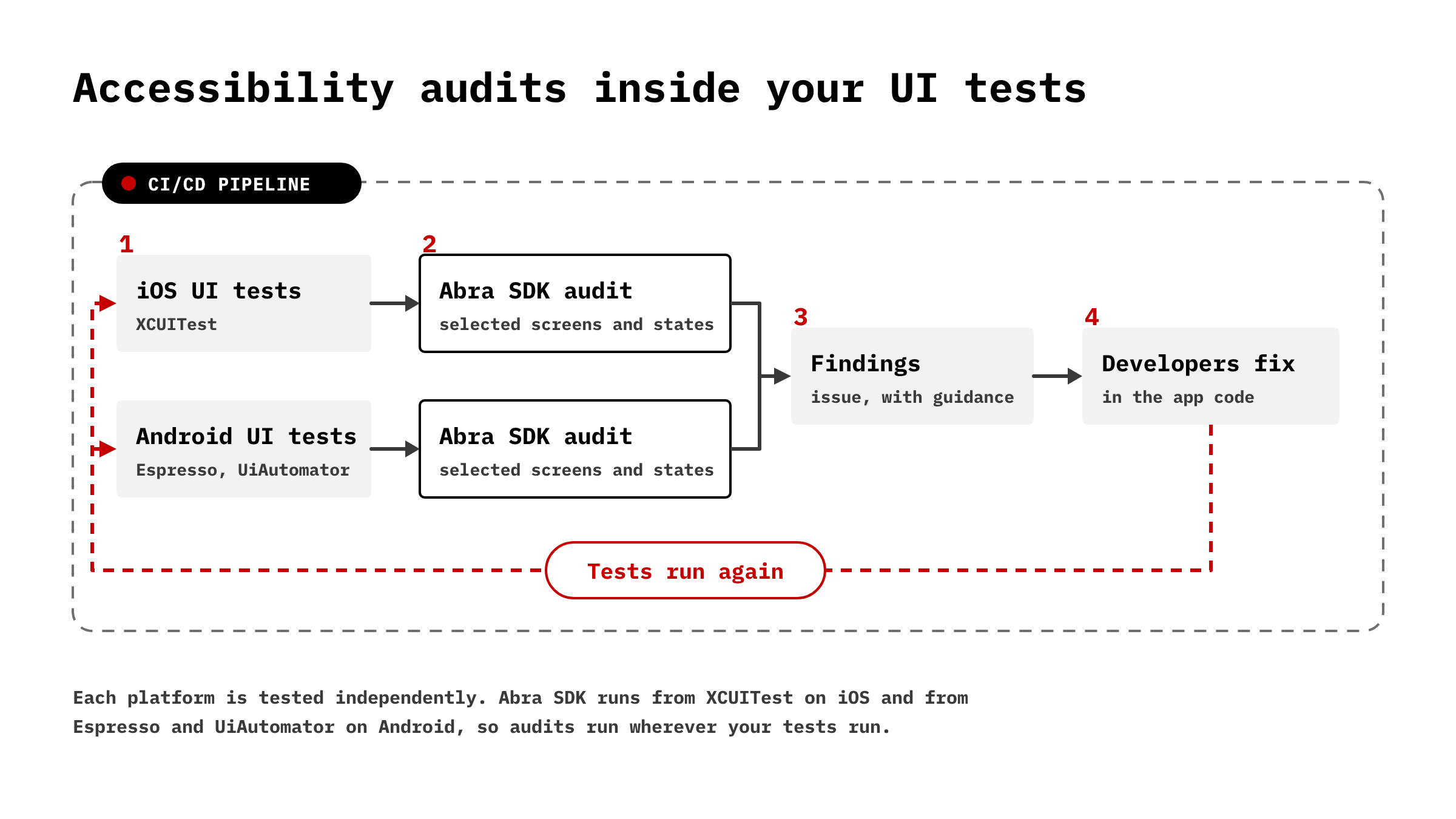 Accessibility checks become more useful when they run as part of regular development. Your CI/CD pipeline can execute the UI tests that include these checks whenever the relevant build or test job runs.
A practical starting point:
Choose a user flow, such as registration, search or checkout.
Add an accessibility audit at relevant screens and states, including validation errors, dialogs and expanded controls.
Review the findings and fix recurring problems in shared components where possible.
Agree which results should fail a test. If existing issues need to be tracked temporarily, keep any exclusions specific and document them.
Extend coverage as your test suite grows, and rerun the checks after changes.
Coverage depends on what the tests actually reach and audit. Scrolling, opening a menu or changing a setting can reveal content that was not included in an earlier check.
A passing run means the selected checks reported no failures in the tested conditions. Keep the tested screens, states, platforms and rule set visible when you report the result.
How AI can build on automated app accessibility testing
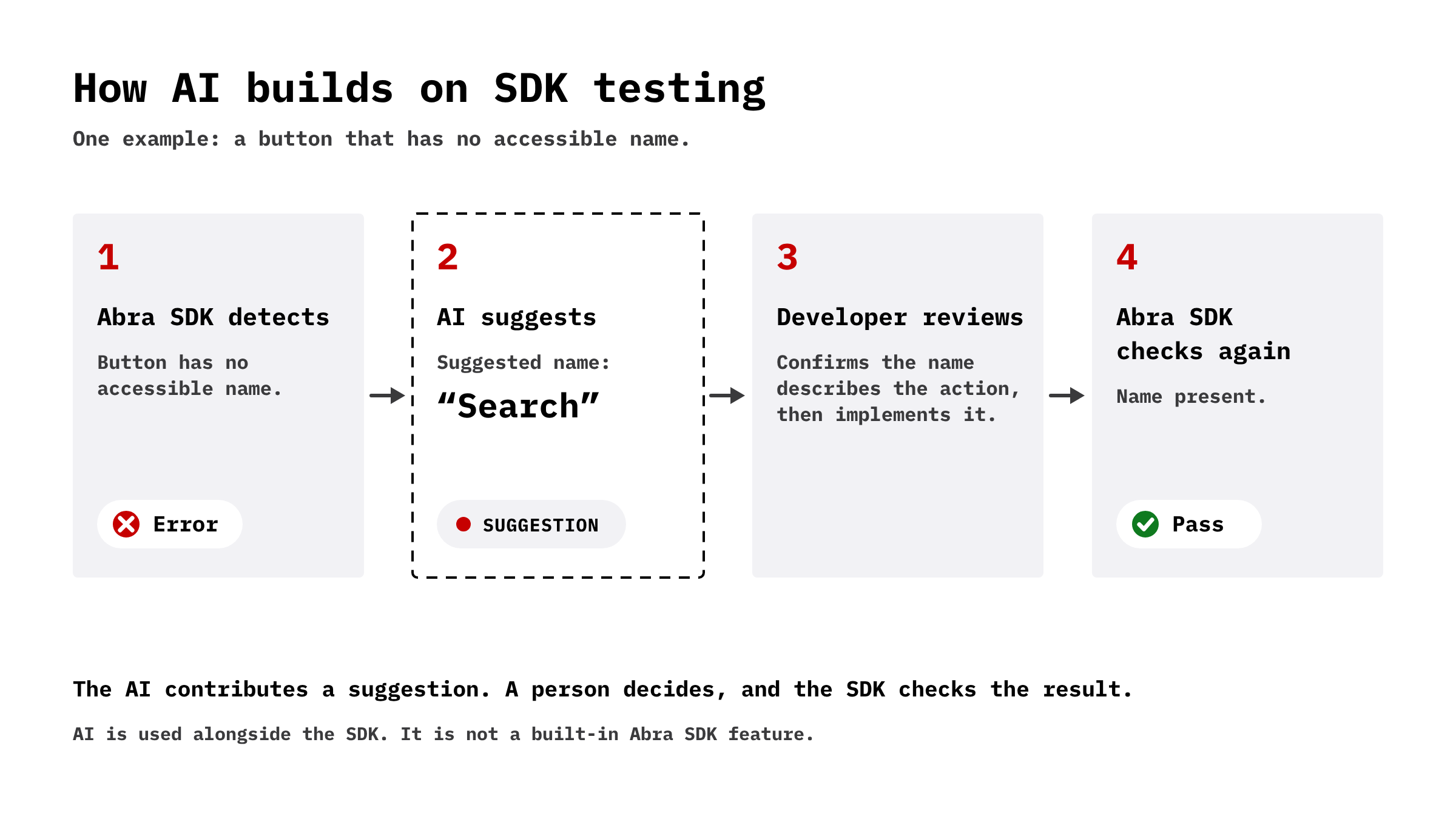 AI offers ways to extend this workflow. We see value in using it around a dependable testing foundation: defined checks that your team can run, inspect and repeat.
For example, a team could use an AI coding assistant to help write UI tests that call the SDK, suggest additional test scenarios or propose a fix for a reported issue. AI could also help reviewers identify patterns across findings.
Consider a button with no accessible name. The SDK can flag the missing property. An AI assistant could use the surrounding code and interface to suggest a name. A developer then checks that the suggestion describes the action and implements it. Rerunning the test checks the implementation against the selected rules.
These are ways to use AI alongside a test suite; they are not built-in AI features of Abra SDK.
AI evaluation of meaning needs additional care. A model may suggest that a label is unclear or that instructions are confusing, but that suggestion needs context and review. It should remain distinguishable from a result produced by a defined automated check.
When AI helps generate tests, review the assertions as well as the code. A generated test is only useful if it checks the right behaviour.
As we discussed in our TPAC takeaways, AI creates opportunities for accessibility testing, while reliability, explainability and evidence remain essential.
Combine automation with manual and user testing
Automated checks help your team find technical issues repeatedly. Manual testing checks how the app behaves when someone uses a screen reader, an external keyboard or larger text. Testing with people with disabilities adds insight into the barriers they encounter while completing real tasks.
For example, automation may find missing accessibility properties, while a manual test reveals that focus moves to an unexpected place after a dialog closes. User testing may reveal that the instructions make the task difficult to understand.
A complete assessment needs more than a passing automated test suite. For a structured approach, use our practical guide to mobile accessibility testing.
Start testing your own app
Add accessibility checks to a flow your team already tests and see what they reveal.
Try Abra SDK free for 30 days and start integrating accessibility testing into your iOS and Android development workflow.
Further reading
-
Focusable element's role correct
Some elements in your app may have an identity crisis. Read more »
-
Focusable element's name correct
What you see is not always what a screen reader announces. Read more »
-
Focusable element's state correct
Some elements in your app might not be telling the truth. Read more »