

Accessible search in Android and iOS apps: a checklist
Search helps people find something in an app. It might show recent searches or update results as someone types. Each pattern needs to work with a screen reader, a keyboard and larger text. Use this article when you design a search flow or check an app.
Let’s start with the most common mistakes, then use the checklist to review the whole search flow.
Most common mistakes
Some accessibility issues come back in almost every interactive element, such as low contrast and text that doesn't scale. Search fields also have issues of their own. Let's look at them one by one.
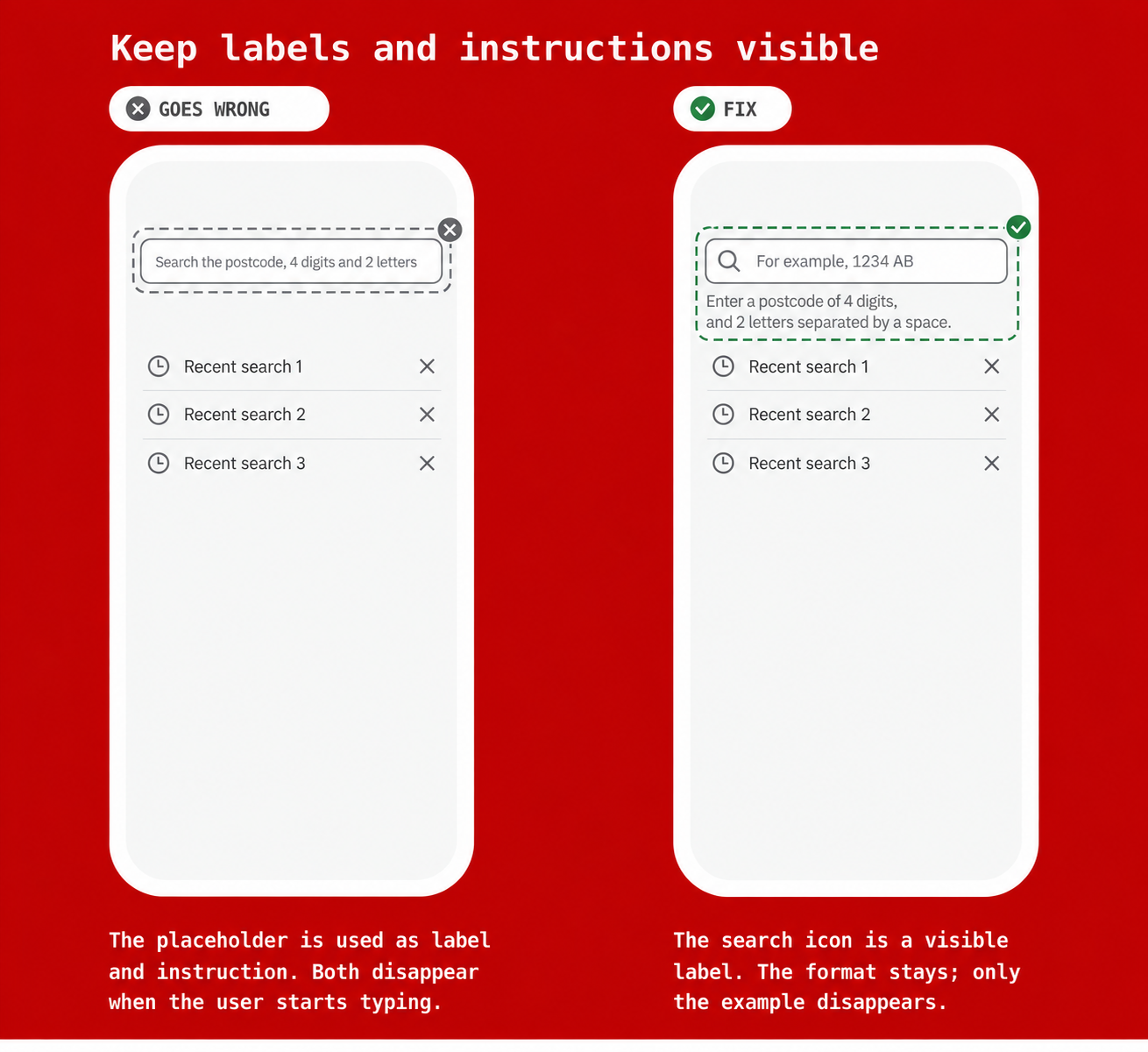
1. Using the placeholder as a label or instruction
Problem: a placeholder disappears when someone starts typing. At larger text sizes, a long placeholder may also be cut off. It can look like a smart way to save space. But after an interruption, people no longer know what to enter. If the only instruction disappears, they have to erase their input to find it again.
Solution: keep a visible label at all times, as text or as an icon. Best practice for text fields is to place instructions above the field. If that isn't possible, place them below the field and make sure the screen reader reads them before the search field gets focus. Screen reader users then hear the required format before they reach the field, and sighted users see it before they start typing.
 2. Not announcing an empty result as a status message
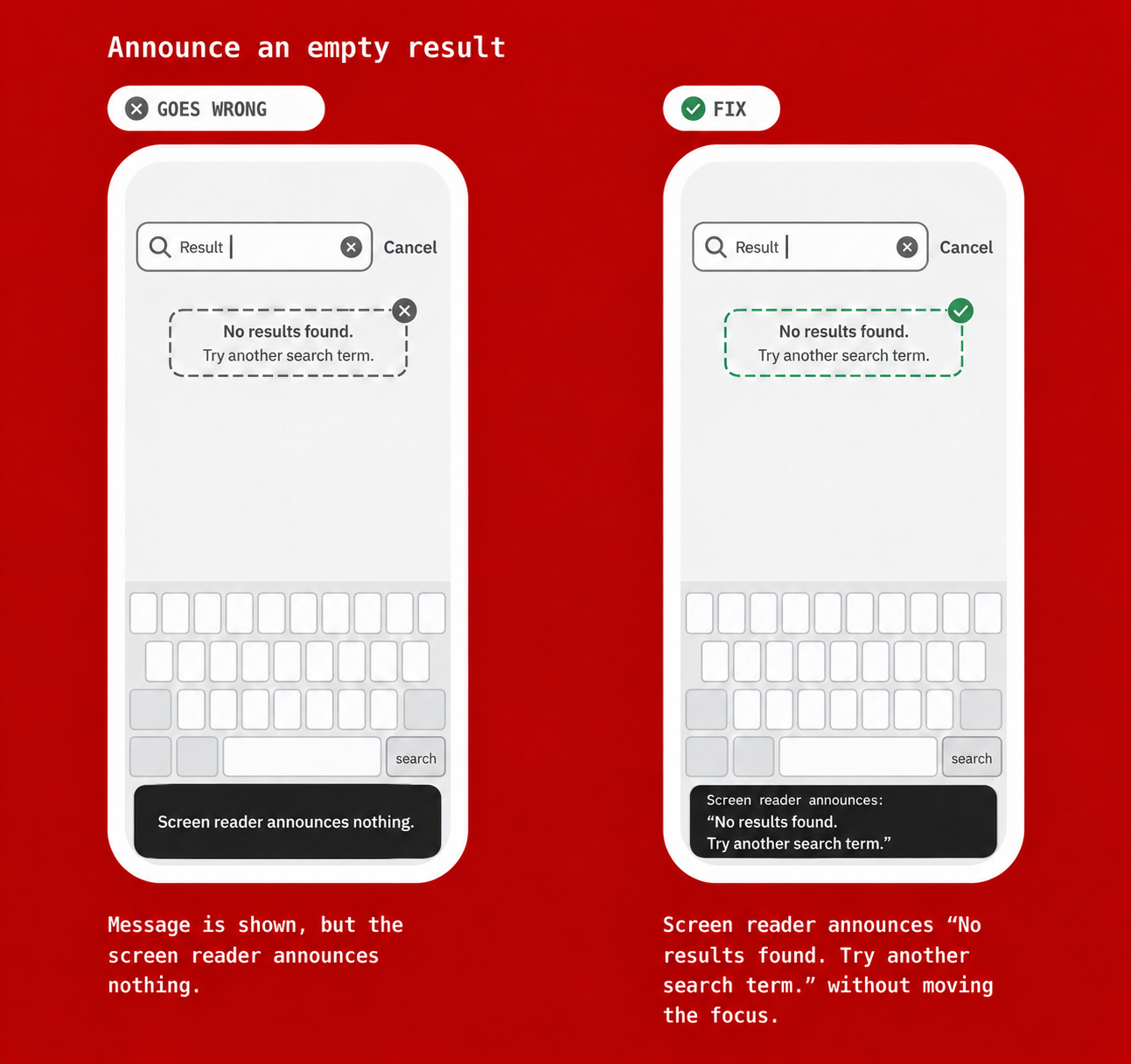
Problem: a search finds nothing and the screen shows a message, but the screen reader stays silent. Screen reader users can't tell whether the search finished, failed or is still loading.
Solution: when a completed search finds nothing, show a clear message. Give a next step, such as "No results found. Try another search term." Announce the message as a status message, without moving focus. Keep the query in the field so people can edit it. Use a different message when the search fails, and show progress while it loads.
 3. Not announcing suggestions and recent searches
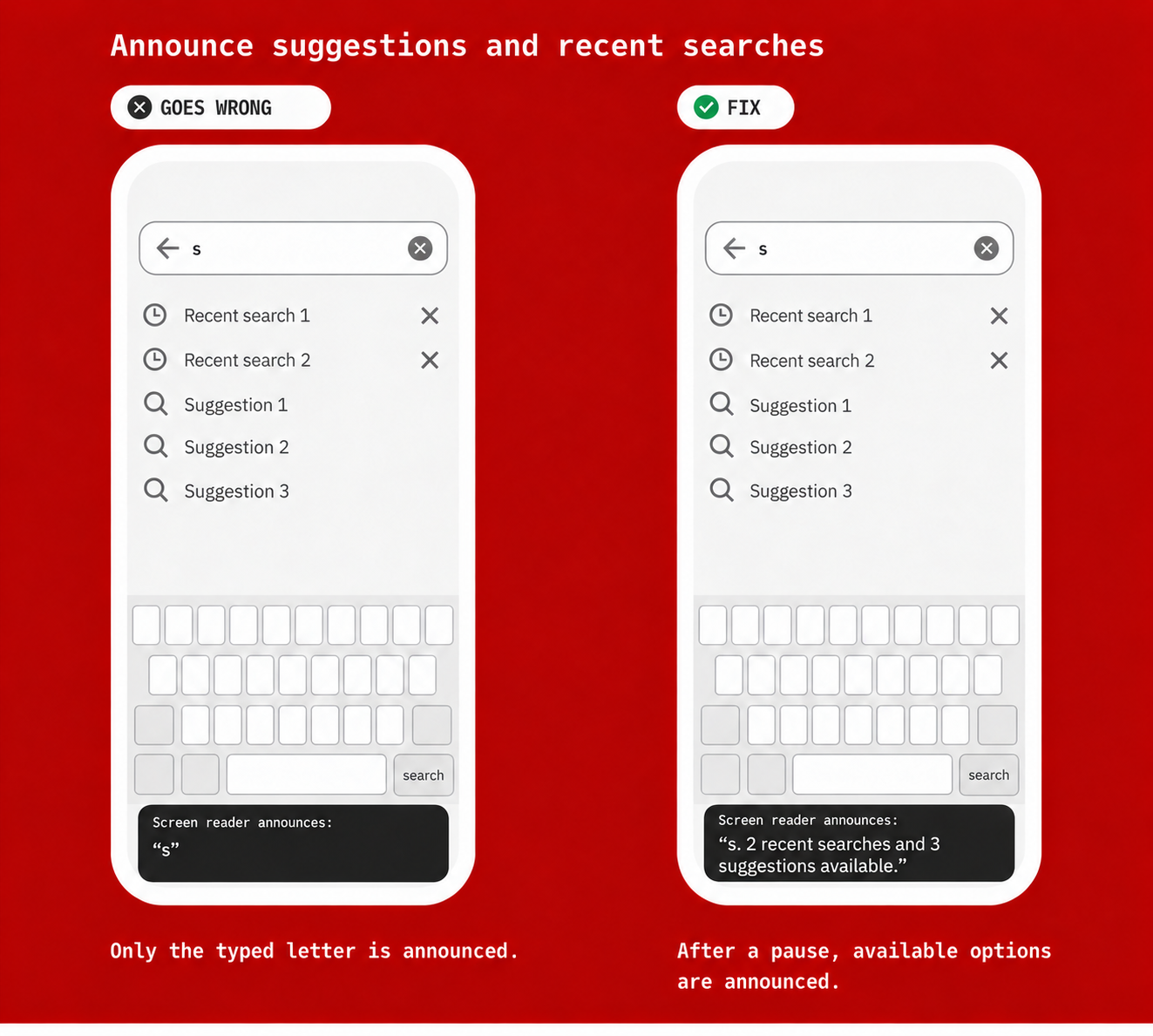
Problem: suggestions or recent searches appear on screen when user start typing, but the screen reader doesn't announce them. Screen reader users don't know the list is there, how many items it has or that they can move to it.
Solution: announce that suggestions are available and how many, such as “2 recent searches available”. For suggestions that change while typing, we recommend a short pause, for example 1–3 seconds. Announce a brief status message about the latest list without automatically moving focus. Announcing updates after every letter can interrupt typing and distract users.
Icons or another visual cue can help users distinguish recent searches from suggestions. Make sure the screen reader also identifies each option as a recent search or a suggestion.
Make the list reachable with a screen reader or an external keyboard. Users should be able to navigate to and select each suggestion or recent search separately.
 4. Not announcing the number of results after a search
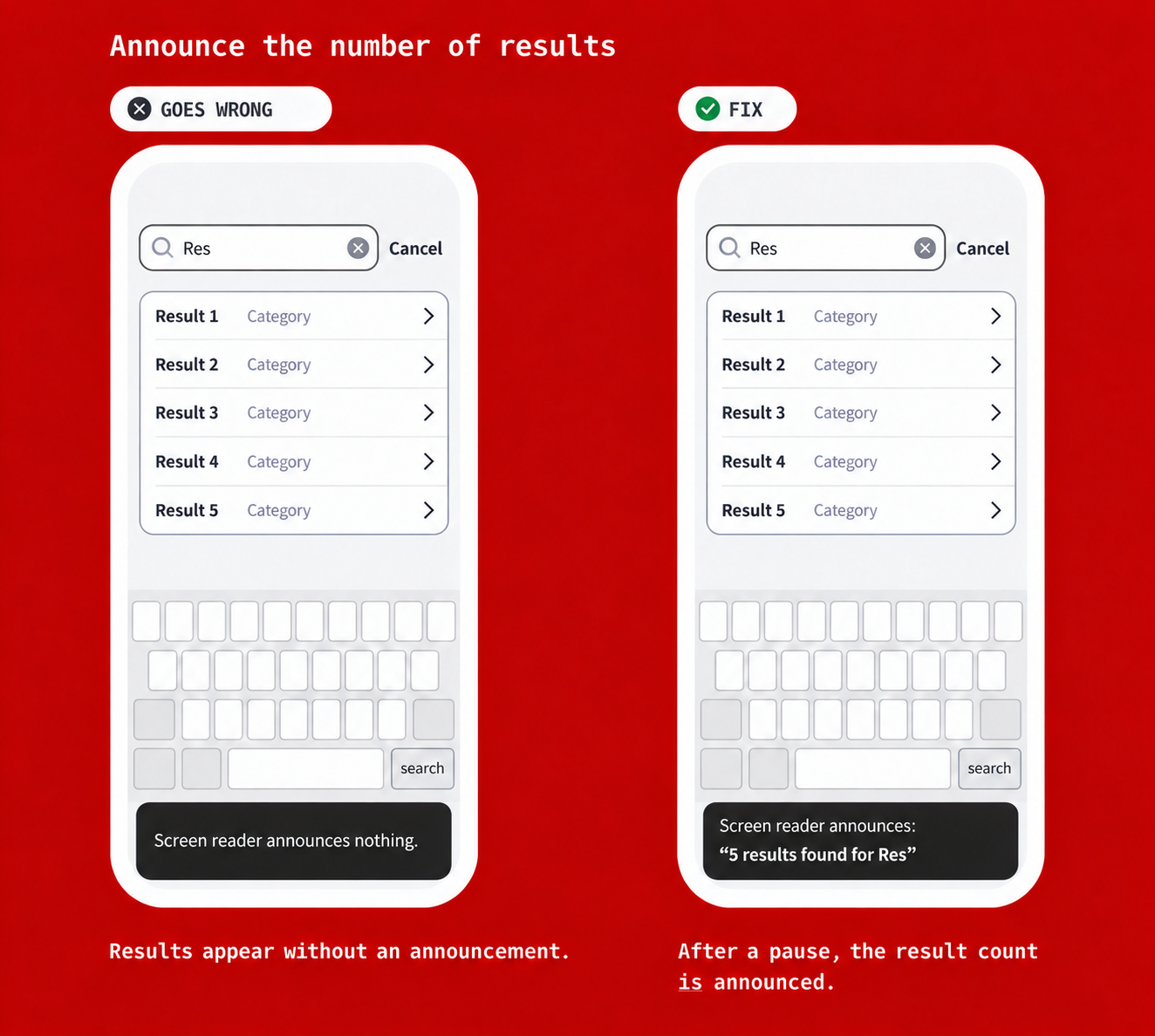
Problem: after a search, the results change on screen, but the screen reader says nothing. Users don't know whether the search worked or how many results there are.
Solution: announce the number of results together with the query, such as "5 results found for Res". For live search, wait for a pause in typing (build 2 or 3 seconds delay). Don't repeat an unchanged message during one edit, and drop outdated announcements when a newer search replaces them. When someone submits a search, always confirm the outcome, even if the count stays the same.
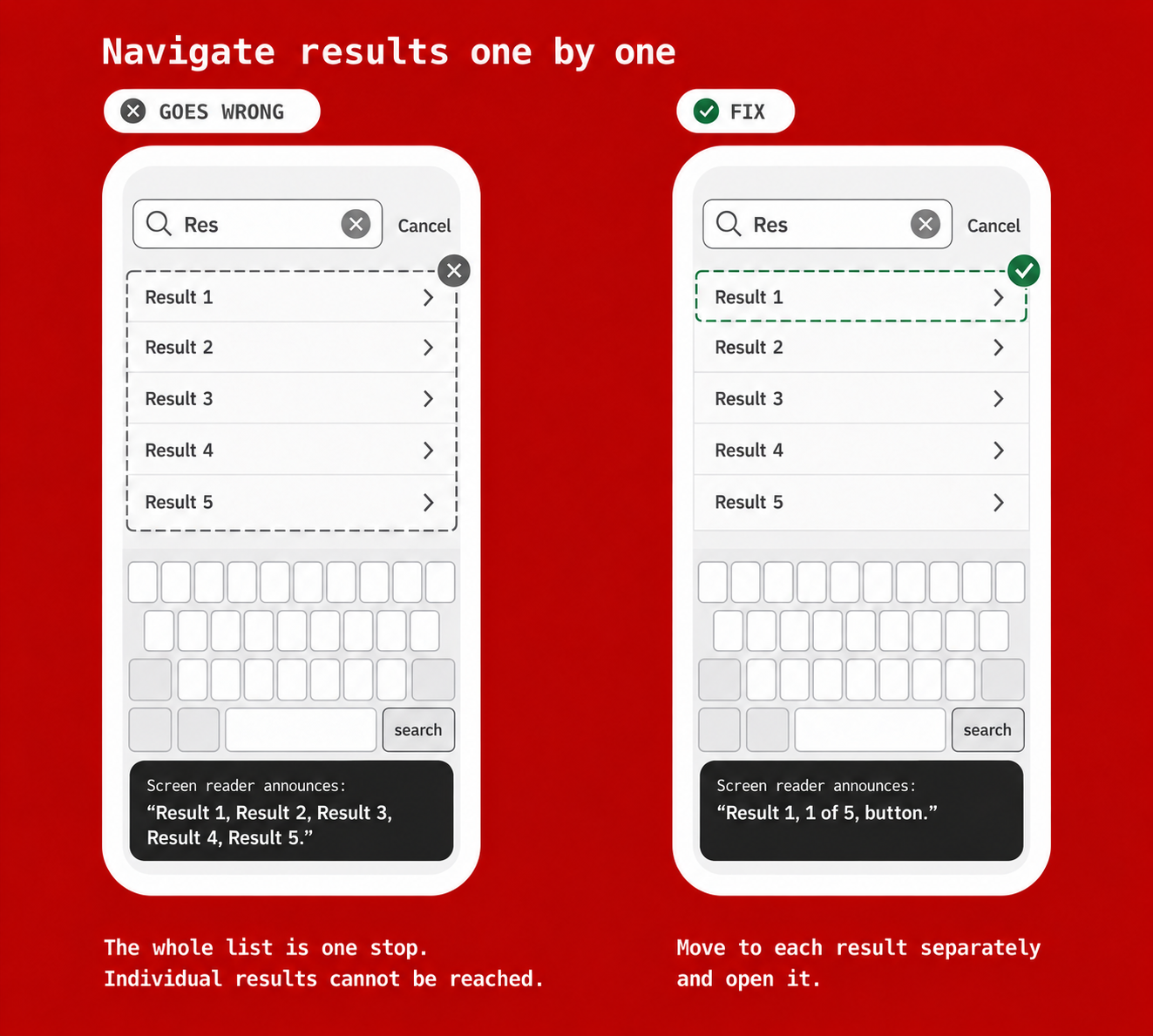
 5. The list of results isn't separately navigable
Problem: results, suggestions or recent searches don't form a list that screen reader users can move through. Items are read out as one block, or users can't tell where the list starts and ends.
Solution: present each list as a list the screen reader recognises, with every item as a separate interactive element. Users should be able to move to the list, go through the items one by one and know how many there are.
 6. Search in a modal: the icon disappears, right or wrong?
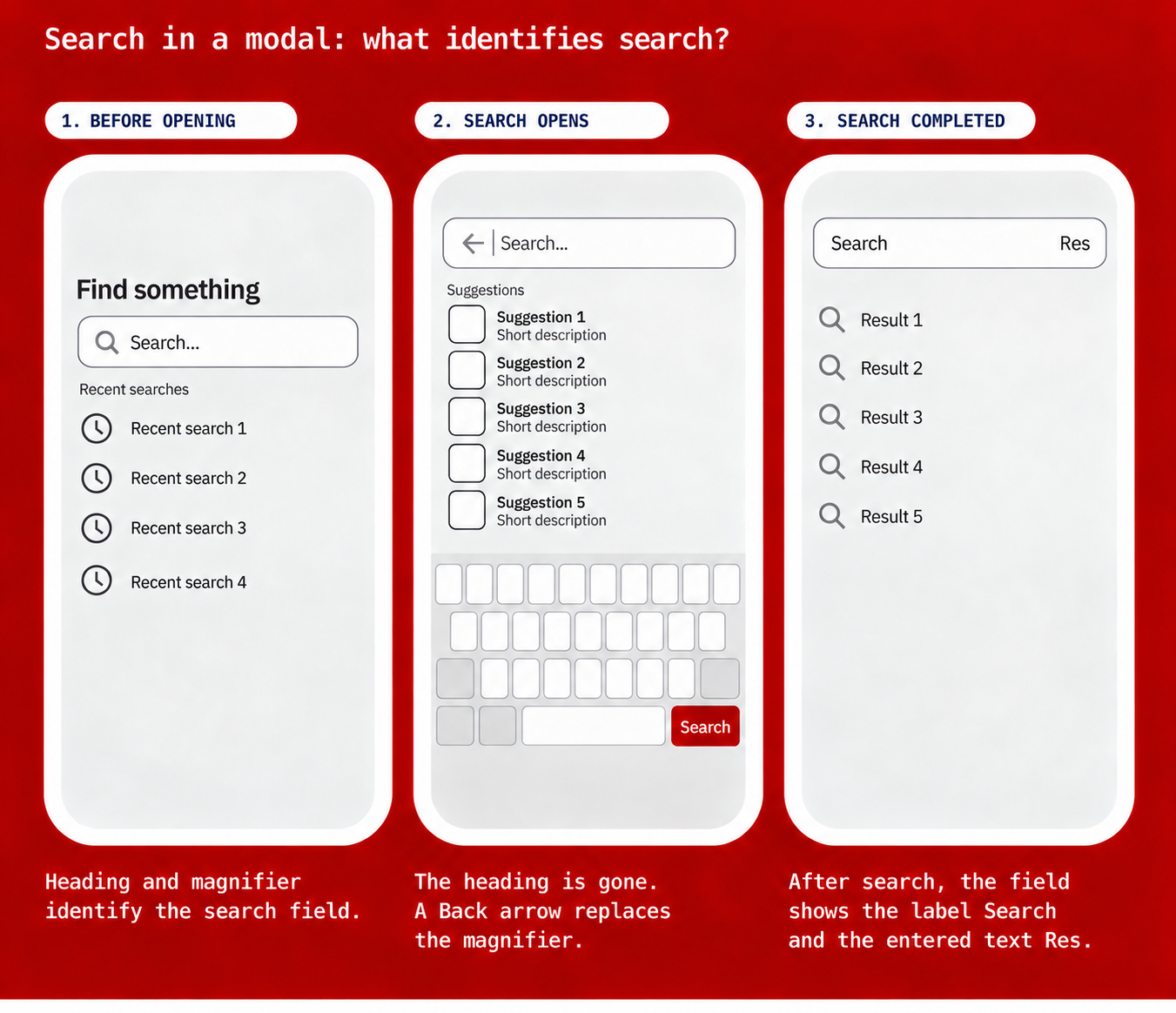
Problem: imagine a "Search" button that clearly says what the search is about. You tap it, and a modal opens with the search field. Instead of the search icon, a Back icon appears. Everything else works the same. Is this wrong?
Solution: it depends on what still tells users that this is search. The Search button provides context before the modal opens. Once you start typing, the visible search label disappears. However, the Search button on the on-screen keyboard still indicates the field’s purpose. The modal is also used only for search.
After you press Search, the field shows a visible label and the entered search term, with the search results below.
Auditors may interpret this differently, but we can argue that this is an acceptable implementation. Check that the field still has an accessible name. Where possible, keep a visible label throughout the search. Lack of space alone does not remove the need to identify search.
 These examples cover common mistakes. Want to make sure your search is completely accessible? Work through the checklist below.
Checklist for accessible search
Inspect the search field and the elements around it, such as instruction text and the Back, Close and Clear buttons. Check whether each item below is true for your search function.
Labels and instructions
Keep the field’s purpose visible after typing, using a clear label or search icon.
Give the field and its buttons a clear accessible name and the correct role. Expose the typed value and relevant states.
Include visible label text in the accessible name. Starting with that text is best practice.
Keep essential instructions visible and connect them to the field for screen readers.
Text and appearance
Give text, including placeholders, enough contrast: usually 4.5:1, or 3:1 for large text.
Give meaningful icons and boundaries needed to identify controls at least 3:1 contrast against adjacent colours.
Use more than colour to show meaning, such as an error or selected filter.
Keep content and controls usable when text grows. Check wrapping, clipping and access to results.
Support portrait and landscape unless one orientation is essential.
Controls and navigation
Make every action work with a keyboard, without trapping focus.
Use a logical focus order. Keep keyboard focus visible and prevent app content from completely covering the focused control.
Make touch targets large enough or provide enough spacing. Check the Clear button too.
Let users cancel a tap, for example by sliding away before lifting their finger.
Keep focus and typing predictable. Moving focus to a control must not open another screen.
Results and feedback
Expose the list structure. Let screen reader users reach and activate each selectable result or suggestion separately.
Make status messages available to screen readers without moving focus. This includes a displayed result count or “No results” message.
Explain input errors in text and help users correct them. “No results” is a search outcome, not an input error.
Want to learn more?
We offer a 2-month testing program to learn how to test apps for accessibility. In two months, you will learn to use screen readers and external keyboards. You will also learn to check text scaling, recognise accessibility issues and report your findings.
Want to test automatically? Check our Abra SDK and Abra Desktop.
Until 31 December 2026, we also offer a free accessibility check of your app. Request your free app check.
Further reading
-
Labels for non-text content in mobile apps
Think about the last image you shared online. A photo on LinkedIn. A chart in a presentation. An icon on your website. Did it have an alternative text description in the code? Read more »
-
Abra releases automated checks for accessibility language
When a screen reader encounters text in your app, it needs to know which language that text is in. With the language declared, the screen reader picks the right text-to-speech engine and applies the right pronunciation rules. Read more »
-
Abra releases automated checks for name, role, state and value
When users navigate an app with a screen reader, every element is announced using a combination of four properties: name, role, state, and value. Read more »