
Labels for non-text content in mobile apps
Think about the last image you shared online. A photo on LinkedIn. A chart in a presentation. An icon on your website. Did it have an alternative text description in the code?
For most of the images we encounter every day, the answer is no. And for people who rely on assistive technologies, an image without a label simply does not exist.
Images, icons, graphs, charts, illustrations, photos and maps are everywhere in mobile apps, websites and documents. They communicate information, support navigation, and give context. But none of that reaches a screen reader unless a label is defined in the code.
When a label is missing, a screen reader has nothing to announce. When a label is incorrect, users may be misled. And when decorative content is not hidden from assistive technologies, it can distract users.
Non-text content without a proper label is one of the most common accessibility issues we find in our mobile accessibility audits — and one of the easiest to overlook, because the image looks fine on screen.
Who is affected
Labels for non-text content matter for a broader group of users than you might realise.
People with a visual impairment use a screen reader to hear what is shown on screen. Without a label, they receive no information about the image or icon.
People who are deafblind read content in braille. A label is the only way they can access the meaning of non-text content.
People who are unsure about the meaning of an icon or graph can benefit from a clear label that explains its purpose.
What good and bad labels look like
A correct label describes the meaning of the non-text content, not its appearance:
A photo of the queen meeting with a prime minister should have the label "Photo of the queen meeting with a prime minister" — not "Photo of a woman in a yellow hat with a man in a suit."
A graph showing declining sales should describe the key insight, not just say "Graph of sales data."
A map showing the locations of collection points should have a text alternative in the form of a list of those locations.
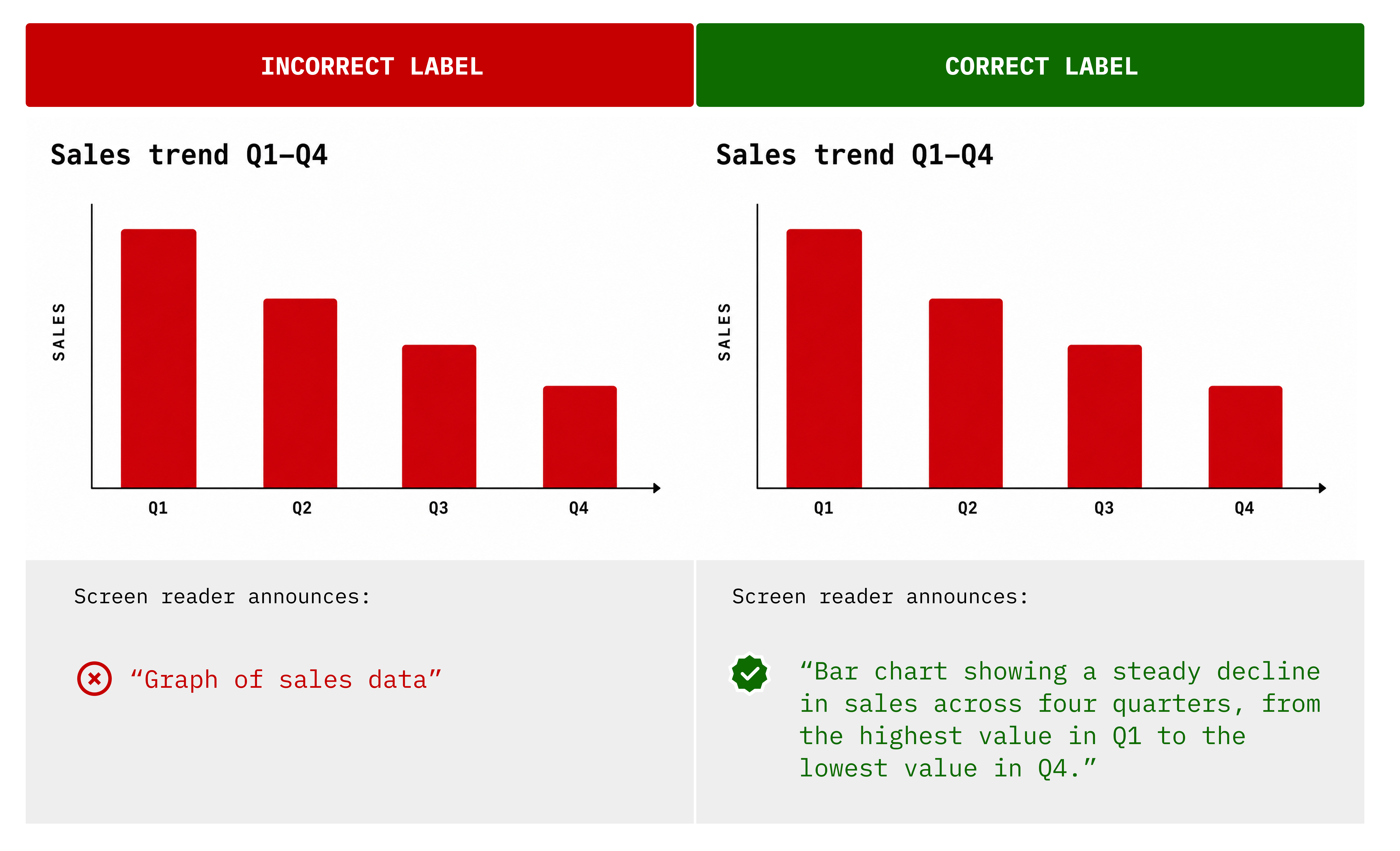 The most common failures we see in audits are:
Not adding a label at all.
Adding a label that has no meaning, such as an empty space character or a unicode character.
Using a file extension name as a label, such as "image123.jpg".
AI-generated labels that are technically present but inaccurate or too generic to be useful.
How Abra checks non-text content
Abra checks non-text content labels automatically. Two rules detect what can be inspected in the code:
Focusable element name present flags focusable non-text elements with no label defined.
Focusable element name correct flags labels that are technically present but incorrect — a file name, an empty space character, a unicode character.
The same checks, plus those that require human judgement, can also be performed manually. To test manually, activate a screen reader — VoiceOver on iOS or TalkBack on Android — and navigate to each non-text element with swipe gestures or touch.
For meaningful content, listen for the label and check whether it matches the meaning. The element passes if the label conveys the same information as the visual content. It fails if the label is missing or incorrect.
For decorative content, swipe through the screen and confirm the element does not receive focus. The element passes if focus skips it. It fails if focus lands on it.
Compliance: WCAG and EN 301 549
Providing a text alternative for all non-text content is required by WCAG 2.2 Success Criterion 1.1.1 Non-text Content at Level A. It is a fundamental requirement in accessibility compliance.
This criterion is referenced in EN 301 549, the European accessibility standard commonly used to assess compliance with the European Accessibility Act (EAA).
Get started with Abra
Want to know how your app handles non-text content?
Contact us to start a free trial or schedule a demo. During the demo, we will run a quick scan of your app using Abra Desktop and show you what we find.
Further reading
-
Abra releases automated checks for name, role, state and value
When users navigate an app with a screen reader, every element is announced using a combination of four properties: name, role, state, and value. Read more »
-
Focusable element's name correct
What you see is not always what a screen reader announces. Read more »
-
Practical guide to mobile accessibility testing
If you are a developer, designer, tester, auditor or any other professional already working on accessibility but unsure how to approach mobile accessibility testing by hand, this guide is for you. Read more »