

Focusable element's value correct
Some elements in your app might be giving the wrong answers.
A slider appears set to 50%. But if the value in the code says something else, that is what the screen reader announces.
People who rely on assistive technologies depend on the value to know the current input, selection, or setting of an element. We often see values assigned to elements that do not need them, or values that are incorrect. In both cases, users get the wrong information.
To catch these issues automatically, we are introducing a new rule in Abra Desktop and Abra SDK: Focusable element value correct.
Available for Android and iOS apps built with SwiftUI, Jetpack Compose, Flutter, React Native and .NET MAUI.
The programmatically determined value
Assistive technologies such as screen readers rely on the value exposed through the accessibility layer of the operating system.
Developers define this value through properties such as text and RangeInfo on Android, or accessibilityValue on iOS.
Values typically represent dynamic content, numeric settings, or selections. Some roles are expected to expose a value, for example:
A slider: the current percentage or position.
A dropdown: the currently selected option.
A progress indicator: the current progress.
A text field: the current input.
Other roles, such as Button or Switch, are not expected to expose a value. The role determines which values are valid for an element — that is why a correct role comes first.
Present vs. correct
Our earlier rule, Focusable element value present, checks whether elements that need a value expose one at all. The new rule goes a step further and asks whether that value belongs there in the first place.
Take an Android app where an upload button exposes a value of "0%". TalkBack announces "Upload, 0%, Button" — but a button is not expected to have a value, so the combination of role and value does not add up. The value belongs to a progress indicator, not a button.
The new Focusable element value correct rule checks whether the exposed value is valid for the element's role, and flags these mismatches across all focusable elements with a programmatically determinable value.
Why manual testing misses this
A manual tester navigates the app with a screen reader and reports what they hear. If the announcement sounds reasonable, the element often passes.
But the announcement alone does not always reveal whether the underlying accessibility properties are correct.
Take this example: a screen reader announces "Brightness, 80%, Adjustable". A manual auditor would pass it — the announcement is exactly what a slider should sound like. But an automated test shows that the whole announcement is included in the accessible name, while the role and value properties are empty. And because the name is static, the announced value stays at 80% no matter how the user adjusts the slider.
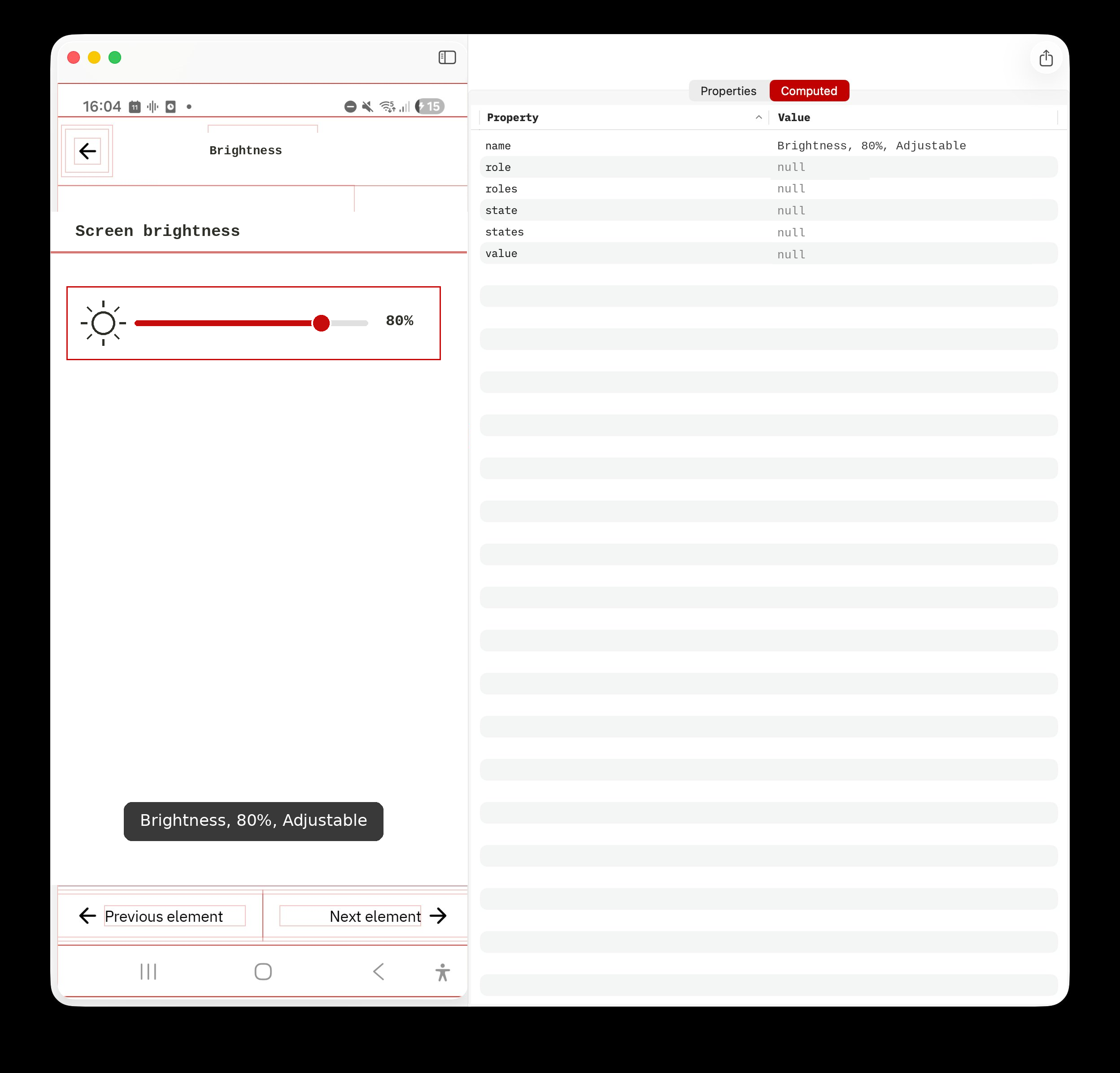 Abra removes this guesswork. Instead of relying only on screen reader announcements, Abra extracts accessibility information directly from the Android and iOS accessibility layer. It validates name, role, state and value independently — and checks whether they are consistent with each other. If the value is missing or not valid for the role, Abra flags it.
Compliance: WCAG and EN 301 549
The Focusable element value correct rule maps to WCAG 2.2 Success Criterion 4.1.2 Name, Role, Value, which requires that values of user interface components can be programmatically determined.
This criterion is referenced in EN 301 549, the European accessibility standard commonly used to assess compliance with the European Accessibility Act (EAA).
Catch common accessibility issues automatically
In many of our mobile accessibility audits, we find issues that Abra's automated rules detect. With a few clicks, you can test a screen against all of them:
For everything that automation cannot cover, Abra includes almost 100 manual rules. Together, they let you report the remaining issues and produce a complete audit report demonstrating compliance with WCAG and EAA.
Get started with Abra
Want to make sure your app always gives users the right answers?
Contact us to start a free trial or schedule a demo. During the demo, we will show which accessibility issues Abra detects in your app.
Further reading
-
Focusable element's state correct
Some elements in your app might not be telling the truth. Read more »
-
Focusable element's role correct
Some elements in your app may have an identity crisis. Read more »
-
Focusable element's name correct
What you see is not always what a screen reader announces. Read more »